Setting Up Multifactor Authentication
1. Install the Microsoft Authenticator App.


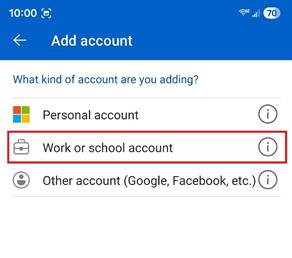
2. After installing the app, open it. It should ask you to add an account. For account type, select Work or school account.
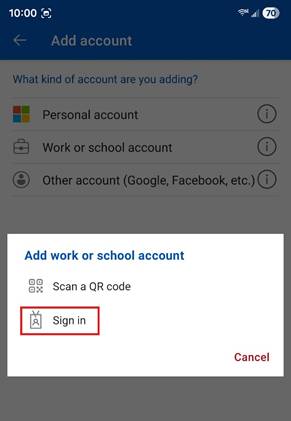
3. Then select Sign In.
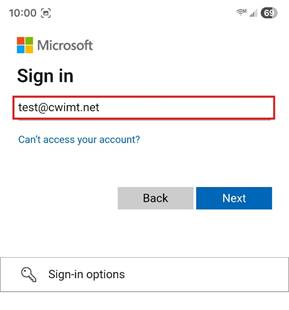
4. Enter your work email address and tap on Next.
5. Enter your work email password* and tap on Next.
*this is the password you would use to sign in to your work computer.

6. Tap on Next.
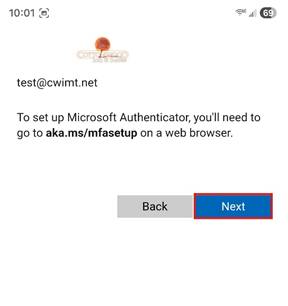
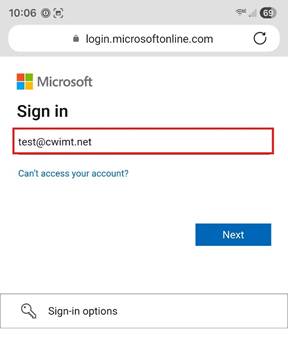
7. Enter your work email address and tap on Next.
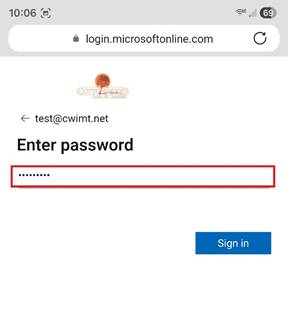
8. Enter your work email password* and tap on Next.
*this is the password you would use to sign in to your work computer.
9. Tap on Next.
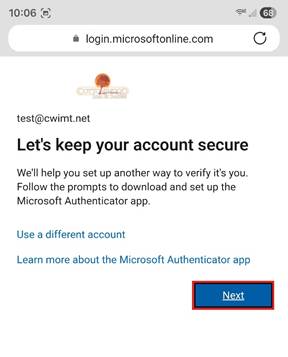
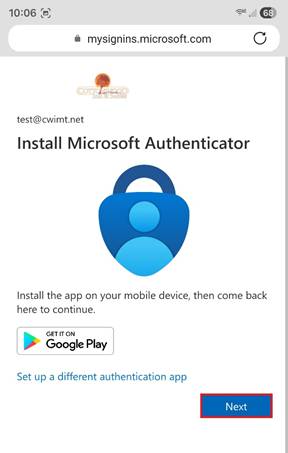
10. Tap on Next.
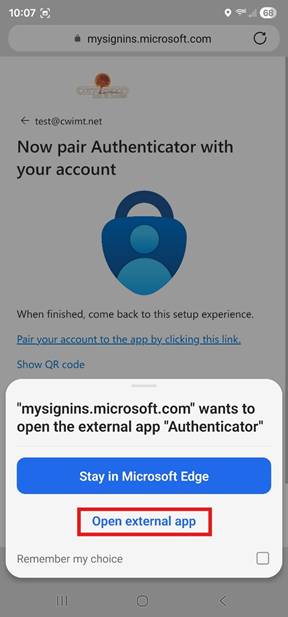
11. Tap on Pair your account to the app by clicking this link.
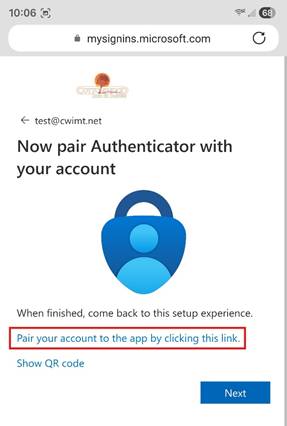
12. If you get a prompt to open or switch to an app, tap on the option to do so. With this browser and phone, it is worded as Open external app. This should bring you back to the Microsoft Authenticator app where your account should be listed.